
メールのパーソナライゼーション
電子メールのパーソナライゼーション では、属性とプレースホルダーを使用して、電子メールの内容を各受信者に合わせて調整できます。これにより、一度に多くの顧客にリーチしながら、より関連性が高く魅力的なメッセージを作成できます。
プレースホルダー
プレースホルダー を使用すると、名前、アカウント番号、その他のプロファイルデータなどの標準属性やカスタム属性を使って、メールをパーソナライズできます。こうすることにより、たとえ送信先が多数の場合でも、各メッセージが受信者一人ひとりに合わせて作成されたかのような印象を与えることができます。 標準属性とカスタム属性は、Peopleのプロファイルに紐づいています。属性やその設定方法の詳細については、People について詳述しているドキュメントをご参照ください。
リンクを追加する際、それを特別なリンクとして定義することもできます。
- ブラウザで表示:
{$browserlink} - 登録解除:
{$unsubscribe}
ブラウザで表示 リンクは 5日後に有効期限が切れます。API経由で送信されるメールトラフィックについては、この機能はデフォルトでは有効に なっていません 。有効にするには、Support またはアカウントマネージャーにお問い合わせください。
単純な式
シンプルな表現 を使用すると、電子メール メッセージに追加するパーソナライゼーションをフォーマットして操作できます。使用可能なオプションは、挿入する属性のデータ型によって異なり、一貫した表示が保証されます。
サポートされている書式設定オプション:
- 文字列:適切な大文字、小文字、大文字
- 数値: 丸め (X.5 未満の場合は下向き、X.5 以上の場合は上向き)、フロア (常に切り捨て)、小数点以下 2 桁の書式設定
- 日付/時刻: 米国形式 (yyyy-MM-dd または yyyy-MM-dd hh:mm)、EU 形式 (dd/MM/yyyy または dd/MM/yyyy hh:mm)、曜日、曜日、日付の月
例:
firstName 属性を挿入すると、次のように書式設定できます。
- 適切なケース → John
- 小文字 → john
- 大文字 → JOHN
表示条件
表示条件を設定することで、メール内のコンテンツを表示または非表示にするルールを定義できます。これにより、同じメッセージをすべての受信対象者へ送信する場合でも、各受信者が自身の属性や興味に合わせたコンテンツを確実に閲覧できるようになります。1通のメッセージにつき、最大50個の条件を作成できます。
表示条件の作成方法 [#how-to-create-a-display-condition-display-condition]
表示条件を作成するには:
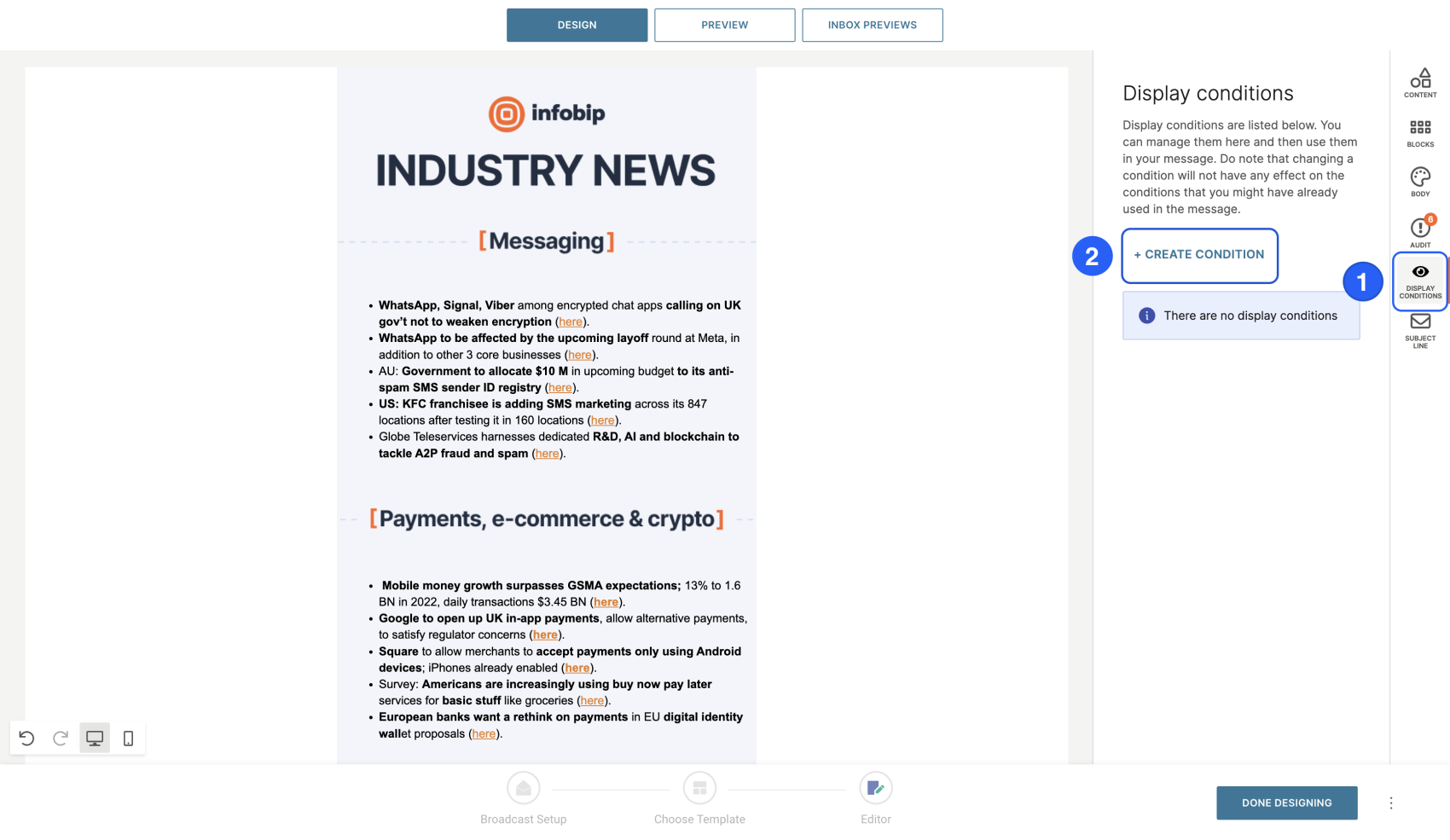
- メールエディター上で、Display conditions (表示条件) タブに移動します。
- Create condition (条件の作成) を選択します。
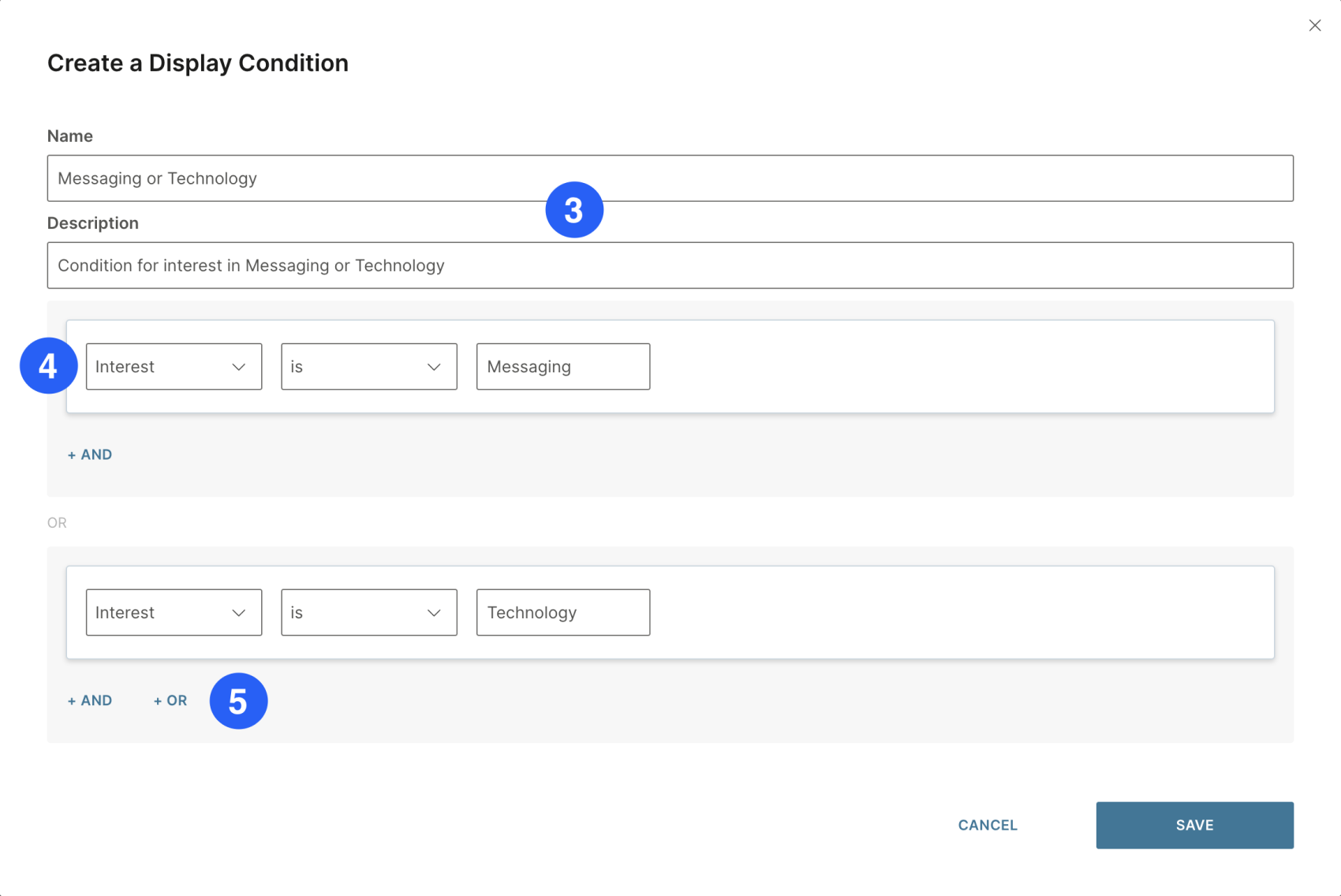
- Name (名前) と**Description (説明)**に必要な情報を入力します。
- Attribute (属性) (例:Interest = Messaging) を選択します。
- より複雑なロジックを作成するには、AND または OR 演算子を使用します (例:Interest = Messaging OR Technology)。
- **Save (保存)**を選択します。
コンテンツへの条件の割り当て [#assigning-a-condition-to-content-display-condition]
コンテンツに表示条件を割り当てるには:
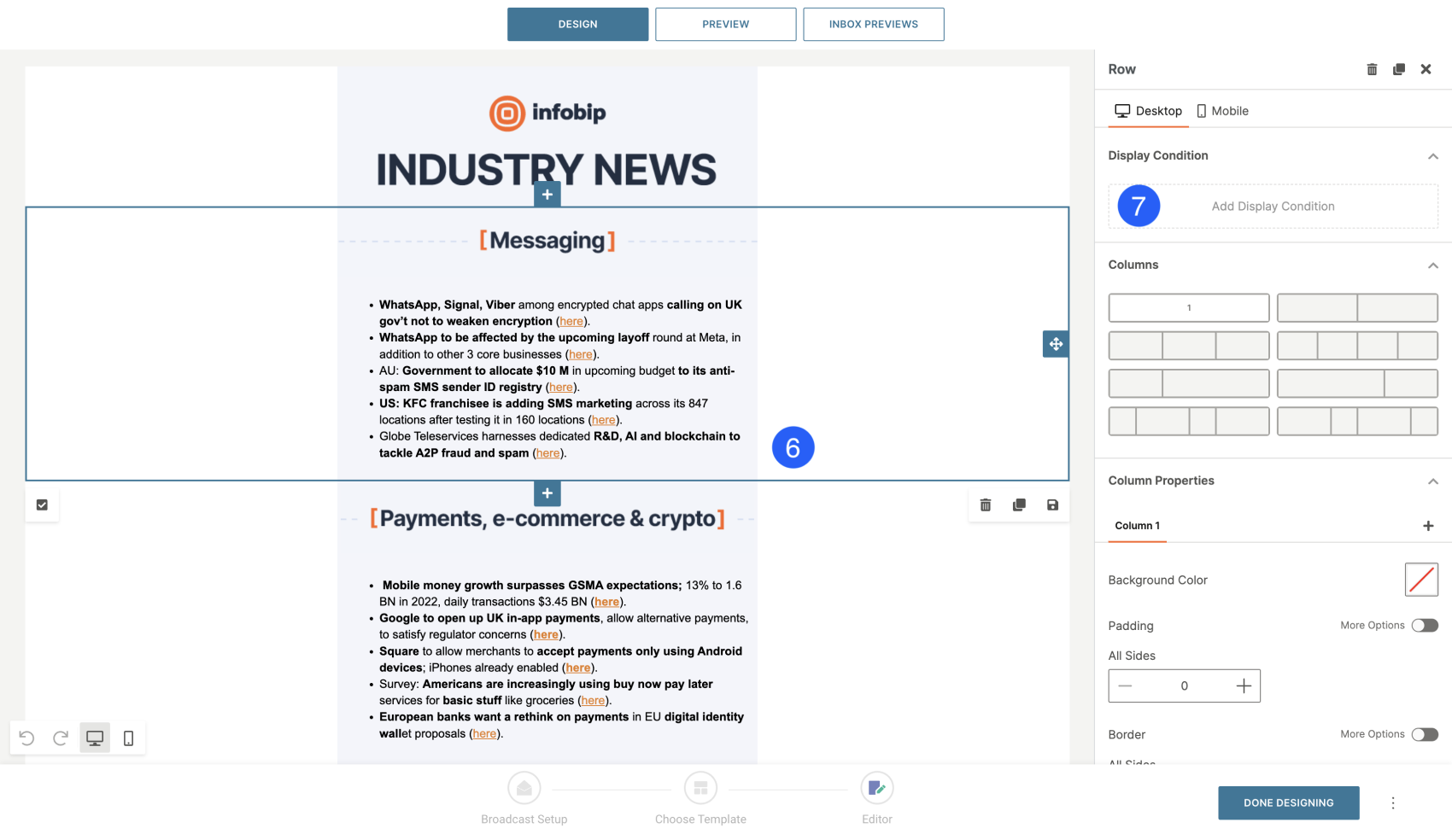
- メールのデザイン領域で、行またはコンテンツブロックを選択します。
- プロパティパネルで、 **Add display condition (表示条件の追加)**を選択します。
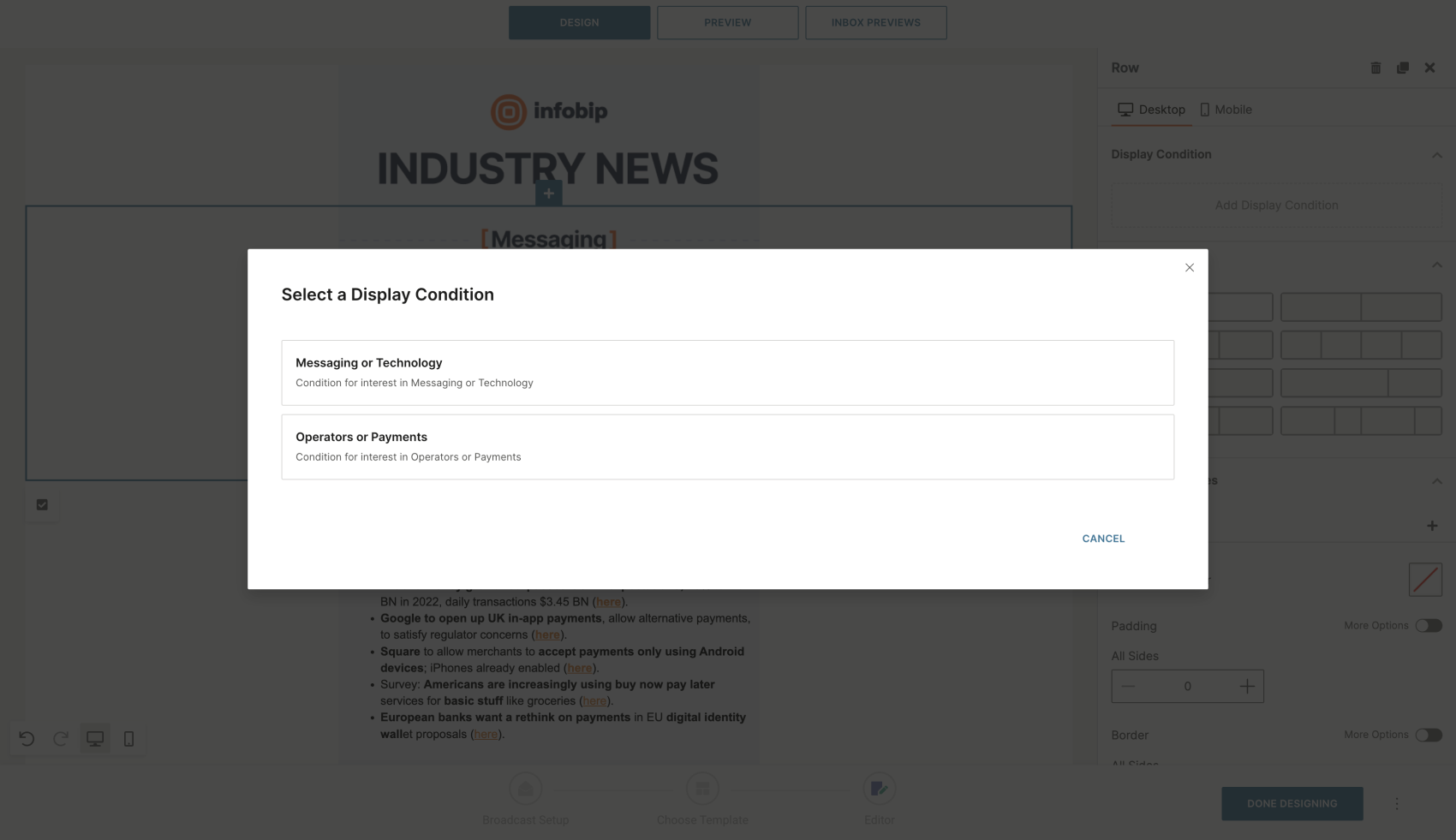
- 適用したい条件を選択します。
- Test placeholders (プレースホルダーのテスト) タブを開き、Preview (プレビュー) で条件をテストします。
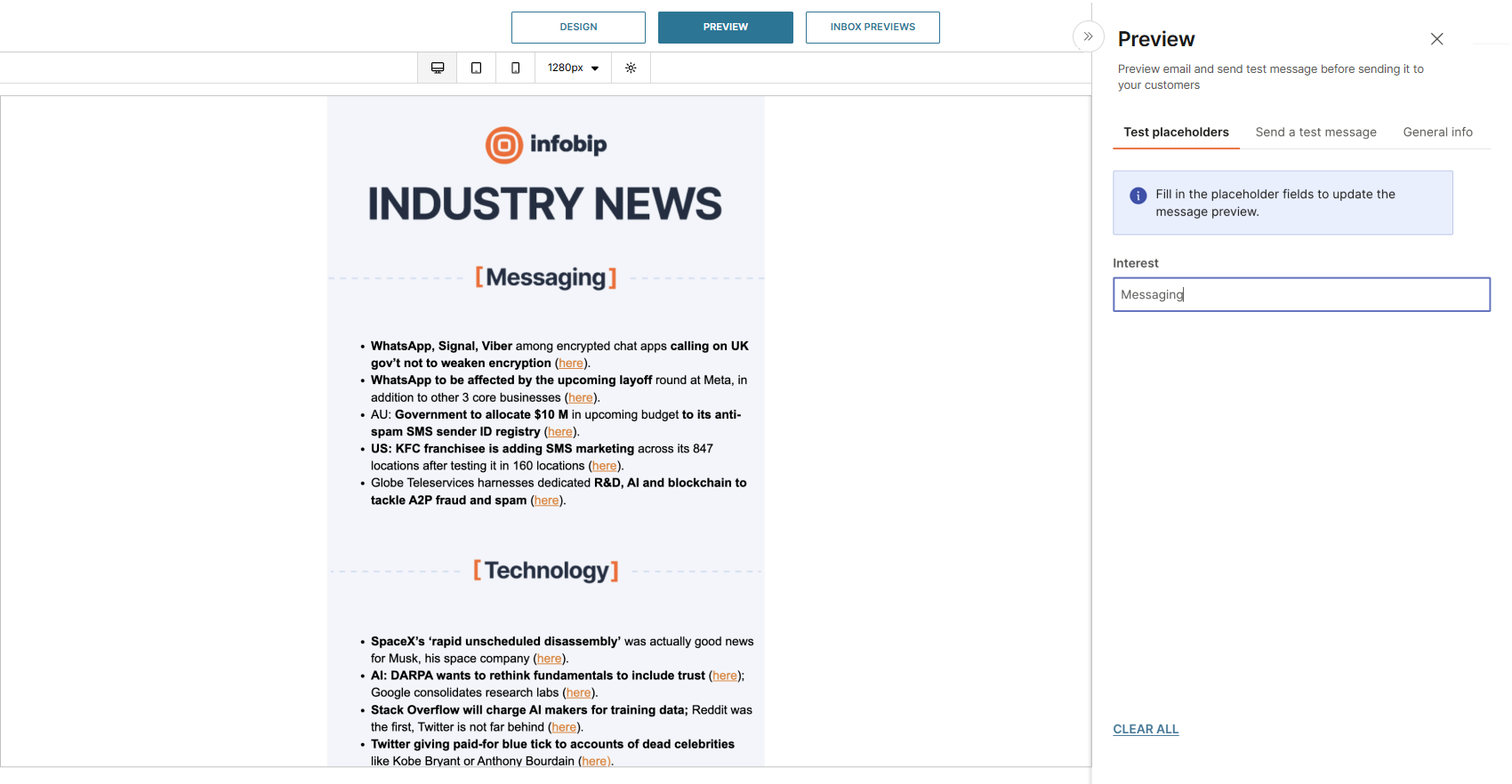
例:
ニュースレターに複数のトピックが含まれている場合、表示条件を設定することで、受信者の関心分野 (例えば、メッセージングやテクノロジーなど) に合致するセクションのみを表示させることができます。
繰り返しブロック
繰り返しブロック機能を使用すると、パーソナライズされたリストを電子メールメッセージに追加し、キャンペーンまたは受信者ごとにアイテムが動的に読み込まれます。繰り返しブロックを使用して、次のようなメッセージを作成します。
- カート放棄のリマインダー
- ニュースレター
- 在庫不足アラート
- 値下げの通知
- ポリシーの有効期限のリマインダー
繰り返しブロックは、データのリスト(配列)をループし、そのリスト内の各エントリに対してテンプレートのセクションを自動的に繰り返すことによって機能します。アイテムのプロパティは、繰り返される各ブロックに動的に挿入されます。
リピートブロックの作成方法 [#how-to-create-a-repeat-block-repeat-block]
繰り返しブロックを作成するには:
- カスタムメールメッセージを作成するか、テンプレートを開きます。
- 表示するコンテンツのレイアウトをデザインします。
- 繰り返すブロックを選択します。
- プレースホルダーアイコンを選択します。
- ポップアップウィンドウで、アイテムのリストを選択します(カタログまたはリスト属性から)。
- リストを絞り込むには、フィルタ を選択して、表示する項目を定義します。
- 表示するアイテムの最大量を設定します。
ベストプラクティス: 最適なパフォーマンスと読みやすさのために、繰り返しブロックをメッセージごとに 15 項目に制限します。
カタログによるパーソナライゼーション [#personalization-with-catalogs-repeat-block]
**カタログ**がデータソースである場合は、アイテムを各受信者と照合してメッセージをパーソナライズできます。
- People attribute に一致させる Catalog フィールド を選択します。受信者の属性に一致する項目のみがメールに表示されます。
- 複数の一致ルールを追加して、リストをさらに調整します。たとえば、受信者のサイズに一致し、受信者が関心のあるカテゴリに分類されるカタログの商品を表示します。
- ソートオプションを使用して、アイテムの表示順序を制御します。
- [利用可能なプレースホルダー] セクションで、メッセージに動的に挿入できるデータを確認します。
- プレビュー を選択して、受信者ごとにパーソナライズされたリストがどのように表示されるかをテストします。
テンプレート言語
新しい テンプレート言語 に、動的なメールコンテンツ向けの、より強力で読みやすく、標準化された構文が導入されています。このテンプレート言語はHTMLコンテンツ内で使用し、プレースホルダーの値はリクエストのtoパラメーター内で定義します。
新規プロジェクト向けの推奨構文:
- プレースホルダー:
{$placeholder} - 式:
{{ ... }} - ロジックタグ:
{% ... %}
タグ [#tags-template-language]
タグはロジックを定義し、テンプレートの流れを制御します。それらは中括弧とパーセント記号で表されます:
{% tag %}
条件 [#conditions-template-language]
{% if %}タグを使用すると、式が真となるかどうかに基づいてコンテンツを表示できます。
ブロックはすべて {% endif %}で閉じます。ロジックは {% elseif %}と{% else %}を使って拡張できます。
例:
| 入力 | 出力 |
|---|---|
{% if {$firstName} == "Alex" %} Hey Alex!{% elseif {$firstName} == "Anna" %}Hey Anna!{% else %}Hi Stranger!{% endif %} | Hey Anna! |
演算子 [#operators-template-language]
if文の中では、論理演算子や比較演算子を使用することができます。
ループ [#loops-template-language]
{% for %}は、配列やオブジェクトなどのコレクションを反復処理する時に使用します。反復回数を制限するには、limit:nを追加します。各ブロックは. {% endfor %}で閉じます。
要素のリストの反復処理
要素のリストの反復処理
| 入力 | 出力 |
|---|---|
You left products in your cart: \{\{ product \}\}\{% endfor %\} | You left products in your cart: Shirt Jeans Shoes |
オブジェクトのリストの反復処理
| 入力 | 出力 |
|---|---|
You left products in your cart: \{% endfor %\} | You left products in your cart: Shirt, 10 EUR, 2 Jeans, 20 EUR, 1 Shoes, 50 EUR, 1 |
リスト内の品目位置の計算 [#calculate-the-item-position-in-the-list-template-language]
リストの長さを計算し、リスト内の品目の位置に応じてルールを追加できます。
| 入力 | 出力 |
|---|---|
Your Policies for | Your Policies for |
式 [#expressions-template-language]
式関数を使用すると、メールテンプレート内に式を組み込むことができます。詳細については、式言語 について詳述しているドキュメントをご参照ください。